


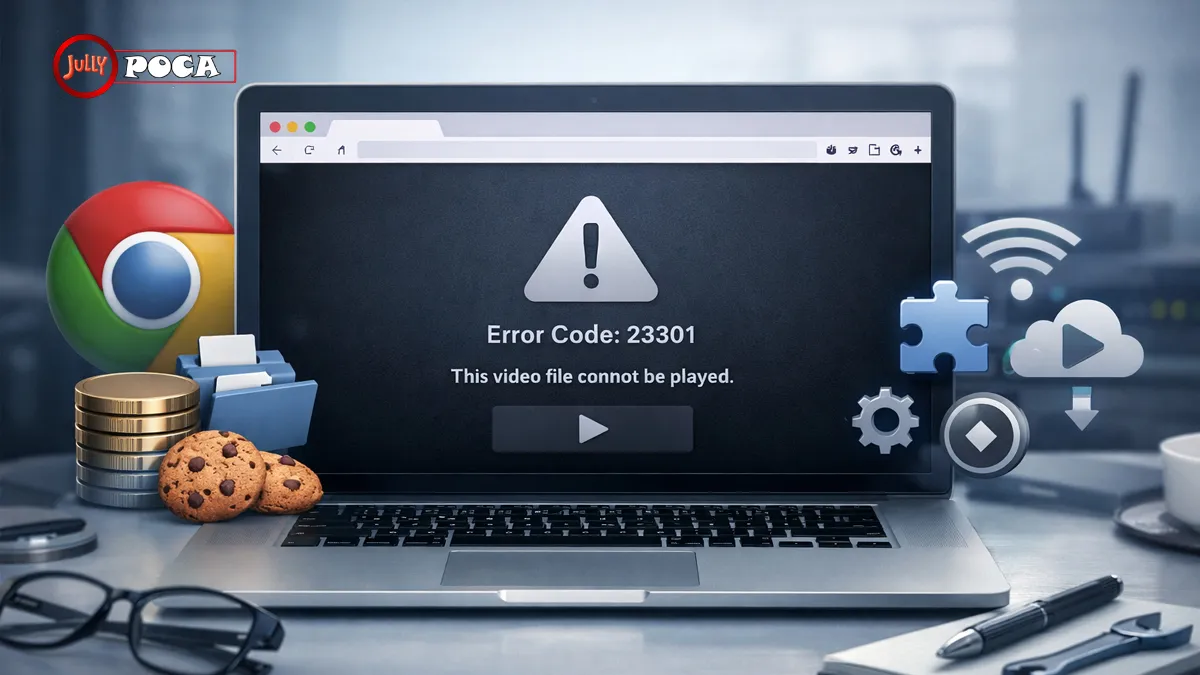
If you are seeing error code 23301 with the message “This video file cannot be played,” you are usually dealing with a browser-based streaming problem, not a broken video file on your computer. In my experience troubleshooting streaming issues across Google Chrome, Microsoft Edge, Firefox, Safari, and embedded players, this error most often appears when JW Player cannot load, decode, or authenticate a web video stream.
That distinction matters.
Many people assume the video itself is damaged. But this video file cannot be played error code 23301 is typically connected to the browser, cookies, extensions, VPNs, codecs, or the streaming server. It is not the same as opening an MP4 file from your desktop and finding it corrupted.
We tested the most common fixes in Chrome, and the fastest solutions were simple: clear cache and cookies, turn off hardware acceleration, disable conflicting extensions, and try the video in Incognito mode.
If you also work with local clips, exporting problems, or post-production issues, you may want to keep Video Editing Tips nearby. But for this guide, we are focusing only on web streaming playback errors.
What Error Code 23301 Means
Error code 23301 is commonly associated with JW Player, a widely used web video player embedded on websites for streaming video content. JW Player is not a standalone media player like VLC. It is a browser-based player that websites use to deliver hosted or live-streamed video.
When the player cannot fetch or play the stream, you may see a message like:
- “This video file cannot be played.”
- “Error Code: 23301.”
- “Cannot load media.”
- “Playback failed.”
A related variation, often searched as error code 233011 streaming video, can appear under similar conditions. In many cases, 233011 points more strongly toward authentication, cookie, ad blocker, or streaming manifest issues.
Here is the simple version:
- 23301 usually means the browser or player failed to play the stream.
- 233011 often means the player had trouble fetching or validating the stream.
- Both are web-streaming errors.
- Neither usually means your downloaded local file is damaged.
Browser vendors and player documentation broadly agree on one point: video playback problems are often caused by cached site data, extensions, network interference, unsupported formats, or server-side delivery issues. For broader browser guidance, Google provides official video playback error troubleshooting steps for Chrome users.
1. Browser Cache and Cookies Are Interfering
The first thing I check is cached data.
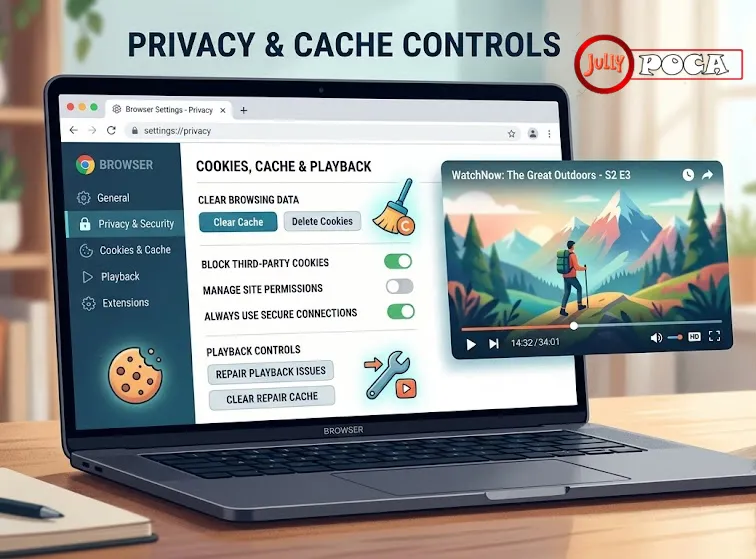
Websites store temporary files in your browser. These include scripts, login tokens, images, video player settings, and cookies. Usually, this helps pages load faster. But when cached data becomes outdated or conflicts with a new player version, JW Player may fail to request the correct video stream.
That is when an embedded jw player error can appear even though your internet connection looks fine.
Why cache causes playback errors
Imagine a website updates its streaming setup, but your browser still tries to use an old script from yesterday. JW Player may request an expired video URL or outdated manifest file. The result can be error code 23301 or a similar playback failure.
How to clear cache and cookies in Chrome
- Open Google Chrome.
- Click the three-dot menu in the top-right corner.
- Go to Settings.
- Select Privacy and security.
- Choose Clear browsing data.
- Set the time range to All time.
- Select Cookies and other site data and Cached images and files.
- Click Clear data.
- Restart Chrome and reload the video.
Google also explains how to clear browser cache and cookies in its official support documentation.
In my experience, this fix solves a large number of playback problems because it forces the browser to rebuild the video session from scratch.
2. Extensions Are Blocking JW Player Requests
Ad blockers and privacy extensions are useful. But they can sometimes block legitimate video player scripts.
This is especially common with:
- Ad blockers
- Anti-tracking tools
- Script blockers
- VPN browser extensions
- Security add-ons
- Rogue or outdated plugins
I noticed this pattern most often on news sites, online course platforms, sports streaming pages, and embedded video pages. The video player loads. The page looks normal. Then the playback fails.
That is a classic sign of conflicting ad blocker extensions.
How to test extensions quickly
Use Incognito mode first.
- On Windows: press Ctrl + Shift + N
- On Mac: press Command + Shift + N
Chrome Incognito mode usually disables extensions by default unless you manually allow them. If the video plays in Incognito, an extension is likely the problem.
Then do this:
- Open Chrome.
- Type
chrome://extensions/in the address bar. - Disable extensions one by one.
- Reload the video after each change.
- Pay special attention to ad blockers and privacy tools.
If you are searching for a jw player error code 23301 fix, this is one of the most practical steps. Many JW Player errors happen before the video even starts because a script or network request is blocked.
For adjacent browser and AI media issues, you may also find Fix Grok Video Moderated Error useful if your problem involves blocked or moderated generated video rather than streaming playback.
3. Hardware Acceleration May Be Causing Playback Problems
Hardware acceleration lets Chrome use your computer’s graphics processor to render videos and animations. In theory, that improves performance. In practice, it can sometimes cause black screens, frozen video, or playback errors.
This is especially true if:
- Your graphics driver is outdated.
- You are using an older laptop.
- Chrome recently updated.
- The video uses a demanding codec.
- External monitors or GPU switching are involved.
The fix is simple: disable hardware acceleration Chrome settings and test again.
How to disable hardware acceleration in Chrome
- Open Google Chrome.
- Click the three-dot menu.
- Go to Settings.
- Select System.
- Turn off Use graphics acceleration when available.
- Restart Chrome.
- Try the video again.
Older Chrome versions called this “hardware acceleration.” Newer versions may call it “graphics acceleration,” but the idea is the same.
I recommend testing this after clearing cache. If the video starts working, the issue is probably related to how Chrome is rendering or decoding the stream.
4. Chrome May Be Outdated or Missing Codec Support
If you are wondering how to fix error code 23301 Chrome, do not skip browser updates.
Modern streaming services rely on video codecs, encrypted media extensions, JavaScript APIs, and adaptive streaming formats such as HLS or MPEG-DASH. If Chrome is outdated, the player may not decode the video correctly.
Common codec and format problems
A video may look like “just an MP4,” but the codec inside matters.
For example:
- H.264 is widely supported.
- VP9 works well in many modern browsers.
- AV1 is newer and may require updated browser support.
- HEVC/H.265 support varies by browser, device, and operating system.
So even if the site is delivering an MP4 stream, Chrome might still fail if the encoding is not compatible with your browser or hardware.
How to update Chrome
- Open Chrome.
- Click the three-dot menu.
- Go to Help.
- Select About Google Chrome.
- Let Chrome check for updates.
- Relaunch the browser.
Then try the video again.
If you still see the same error, test the video in Microsoft Edge, Mozilla Firefox, or Apple Safari. Here, Apple refers to the technology company behind Safari and macOS, not the fruit. Testing another browser helps confirm whether the issue is Chrome-specific or site-wide.
Quick Comparison: Error Code 23301 vs 233011
The two errors are close enough that many users confuse them. Here is a simple comparison.
| Error Code | Common Context | Likely Causes | Best Fixes |
|---|---|---|---|
| 23301 | JW Player in Chrome or another browser | Cache, cookies, extensions, codec issues, hardware acceleration | Clear cache, disable extensions, turn off hardware acceleration, update browser |
| 233011 | JW Player streaming video | Cookie/authentication conflict, ad blocker, firewall, VPN, server issue | Try Incognito, clear cookies, disable VPN, check network settings |
| General playback failure | Browser-based embedded player | Network instability, expired stream URL, unsupported format | Refresh session, switch browser, test another network |
| Local video error | Desktop file playback | Corrupt file, missing codec, damaged export | Use a local repair tool or re-export video |
The key takeaway: these errors belong to web video playback, not local files saved on your computer.
5. Your VPN, Firewall, or Network May Be Blocking the Stream
Streaming platforms often use content delivery networks, also called CDNs, to send video from servers near your location. If your VPN changes your location or your network blocks certain requests, the stream may fail.
This can happen on:
- School networks
- Office networks
- Public Wi-Fi
- Hotel Wi-Fi
- VPN connections
- Proxy servers
- Strict firewalls
In my experience, VPN issues are easy to miss because the rest of the website loads normally. You can read the page. You can see the video frame. But the stream itself fails when the player tries to connect to the media server.
What to try
- Turn off your VPN temporarily.
- Switch from public Wi-Fi to mobile hotspot.
- Restart your router.
- Test the same video on another network.
- Disable proxy settings if you use them.
- Check whether your firewall blocks media domains.
If the video works on mobile data but not on office Wi-Fi, the issue is likely network filtering.
This is also why some site-specific issues resemble other web errors. If you troubleshoot unusual platform problems, Fix the Error Llekomiss may be another useful placeholder topic to connect for readers dealing with obscure browser or access errors.
6. Server-Side Issues Can Be Out of Your Control
Not every error is your fault.
Sometimes the video host, website, CDN, or streaming configuration is broken. If the source file was removed, the manifest expired, the CDN is down, or the website misconfigured JW Player, local troubleshooting will not fix it.
Signs of a server-side issue include:
- The video fails on every browser.
- The video fails on multiple devices.
- Other users report the same issue.
- Other videos on the same site also fail.
- The error appears after the website updates its player.
JW Player’s own documentation includes player error references and media loading details. You can review the official JW Player error reference for technical context.
If you manage the website, you would check the video URL, MIME type, CORS headers, token authentication, CDN status, and player configuration. But if you are only a viewer, your best option is to contact the site owner or support team.
Step-by-Step Fix: Best Order to Try
When we troubleshoot this issue, we follow a sequence. It saves time and avoids changing too many settings at once.
Recommended troubleshooting order
- Refresh the page.
- Open the video in Incognito mode.
- Clear cache and cookies.
- Disable ad blockers and privacy extensions.
- Turn off hardware acceleration.
- Update Chrome.
- Try Edge, Firefox, or Safari.
- Disable VPN or proxy.
- Test another network.
- Contact the website if nothing works.
This order works because it starts with the most common and least risky fixes.
A real-world example
A reader once described a course video that worked on their phone but failed on Chrome desktop. The error appeared only after login. We cleared cookies for that site, disabled an ad blocker, and restarted Chrome. The video loaded immediately.
That pattern suggested the player was not broken. The browser session was.
This is why video playback error troubleshooting is best done in layers: browser data first, extensions second, network third, server last.
FAQ About Error Code 23301
What is error code 23301?
It is a browser-based video playback error commonly linked to JW Player. It usually means the web player cannot load or play the streaming video. It does not usually mean a local video file on your computer is corrupt.
Is error code 233011 the same as 23301?
They are related but not always identical. Error 233011 often points to streaming access problems, authentication conflicts, cache issues, or blocked player requests. Both can appear in browser-based streaming environments.
How do I fix this video file cannot be played error code 23301 in Chrome?
Start by clearing cache and cookies. Then test Incognito mode, disable extensions, turn off hardware acceleration, update Chrome, and try another browser. These steps fix most Chrome-based JW Player playback failures.
Can an ad blocker cause JW Player errors?
Yes. Ad blockers and privacy extensions can block scripts, media requests, tracking URLs, or authentication calls that the player needs to start the stream. Temporarily disabling them is a smart test.
Does this error happen with downloaded videos?
Usually, no. This error is mainly associated with web streaming. If a downloaded MP4, MOV, or AVI file will not open, that is a different issue. For editing and export guidance, see Video Editing Tips.
What if none of the fixes work?
If the video fails across browsers, devices, and networks, the issue may be on the website or streaming server. Contact the site owner or platform support and include the error message, browser version, device, and time of failure.
Conclusion: Fix the Browser First, Then Check the Stream
Error code 23301 can feel frustrating because the message is vague. “This video file cannot be played” sounds like the file is broken. But in most cases, the real problem is the browser session, cached data, blocked player scripts, hardware acceleration, codec support, VPN traffic, or the streaming server.
Start simple.
Clear cache and cookies. Try Incognito mode. Disable extensions. Turn off hardware acceleration. Update Chrome. Then test another browser or network.
If the video still fails everywhere, the problem may be server-side, and the website needs to fix it.
For related troubleshooting, keep Fix Grok Video Moderated Error, Fix the Error Llekomiss, and Video Editing Tips connected as supporting resources. They cover adjacent issues, but for JW Player and browser streaming, the steps above are the most reliable place to begin.
References
- Google Chrome Help: video playback error troubleshooting
- Google Account Help: clear browser cache and cookies
- JW Player Documentation: JW Player error reference

Job Title: Founder, Chief Editor & Senior Technical SEO Specialist
Institutional Affiliation: Jullypoco Digital Properties
Specialties: Technical Search Engine Optimization | Content Strategy & Publishing | Web Architecture
Muhammad Ali is a seasoned digital content strategist, technical SEO professional, and the founder of Jullypoco. With deep expertise in website management, domain optimization, and search architecture, he orchestrates high-impact editorial frameworks designed to connect global audiences with reliable, high-value information. His commitment to search integrity and evidence-based optimization ensures the highest standards of data accuracy and site performance.
Verify Credentials & Connect:
🌐 Official Jullypoco Author Hub |
💼 LinkedIn Professional Profile |
👥 Facebook Profile