



If you have been asking, “why does my firestick keep restarting?”, I understand the frustration. I have tested Fire TV Sticks that rebooted every few minutes, froze on the Amazon logo, crashed back to the home screen, or got stuck on the “optimizing system storage and applications” screen. It feels random, but it usually is not.
In my experience, most Firestick restart problems come down to three things: weak power, overheating, or corrupted app/system data. The device is small, but it still needs stable power and breathing room. When it does not get either, Fire OS can crash and reboot.
This guide walks through five practical fixes. We will start with the simplest hardware checks, then move into storage, apps, remote shortcuts, and factory reset options. I will also explain what is happening behind the scenes in plain language, so you know which fix matches your situation.
If you also troubleshoot other smart devices, you may want to keep related guides like TWS Earbuds Complete Manual, Fire TV Remote Not Working Fix, and Streaming Device Wi-Fi Troubleshooting bookmarked for later.
Quick Diagnosis Table: What Your Firestick Restart Pattern Means
| Symptom | Most Likely Cause | Best First Fix |
|---|---|---|
| Firestick restarts every few minutes | Weak power supply or bad USB cable | Use official wall adapter |
| Stuck on Amazon logo loop | Power failure or corrupted Fire OS files | Power flush, then factory reset if needed |
| “Optimizing system storage” keeps repeating | Failed update or low power during maintenance | Stable power and wait 20–25 minutes |
| Apps close and return to home screen | Cache bloat or low storage | Clear app cache and uninstall unused apps |
| Firestick turns off when TV sleeps | HDMI CEC conflict | Disable HDMI CEC Device Control |
| Device feels very hot | Thermal throttling | Improve airflow and use HDMI extender |
1. Check the Power Supply First
The most common reason a Fire TV Stick restarts is not software. It is power.
Amazon Fire TV Stick devices need a stable 5V power source. Many people plug the Firestick into the TV’s USB port because it looks cleaner. I have done it too during quick setups. But many TV USB ports do not provide enough current when the Firestick is working hard.
Streaming 4K video, updating Fire OS, opening Netflix, or loading Prime Video can briefly increase power demand. If the Firestick does not get enough power, it shuts down and restarts. That is why the phrase amazon fire stick keeps turning off and on often points to an underpowered setup.
For official guidance, Amazon recommends using the included wall power adapter. You can review Amazon’s device support details here: Amazon Fire TV device power supply.
What I recommend testing
- Unplug the Firestick from the TV USB port.
- Use the original Amazon power adapter.
- Plug the adapter directly into a wall outlet.
- Avoid cheap extension cords or weak power strips.
- Try a different micro-USB cable if the problem continues.
A worn cable can cause tiny voltage drops. You may not see visible damage. In one test, I swapped a thin third-party cable for a thicker cable, and the reboot loop stopped immediately.
Also inspect the micro-USB port. If the cable wiggles loosely, the Firestick may be losing power for a split second. That is enough to crash the system.
Watch for this clue
If your Firestick restarts mostly when opening apps, loading video, or updating, power is highly suspect. A weak power setup may work while sitting idle but fail under load.
That is why a reliable firestick keeps restarting loop fix usually starts with the wall adapter, not the settings menu.
2. Stop Overheating Before It Triggers Reboots
A Fire TV Stick is designed to run warm. But there is a difference between warm and overheating.
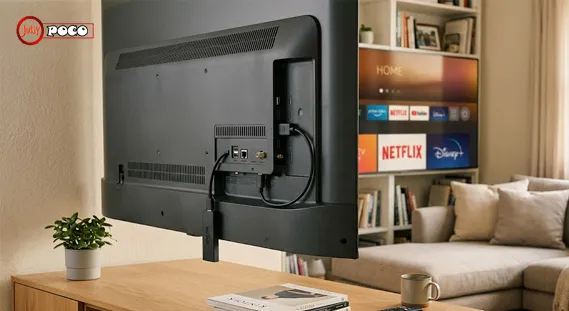
When the device is tucked behind a hot TV panel, airflow is limited. Add a tight entertainment cabinet, nearby game console, or direct sunlight, and the internal temperature can rise quickly. Fire OS may force a reboot to protect the hardware.
I have noticed this more often with older Firestick models and with devices plugged directly into the HDMI port behind large TVs. The back panel of some TVs gets surprisingly hot after an hour of streaming.
Signs your Firestick may be overheating
- It restarts after 20–60 minutes of streaming.
- It feels hot to the touch.
- It works better after cooling down.
- It crashes more often during 4K playback.
- The remote becomes laggy before the restart.
Use the HDMI extender that came with your Fire TV Stick. It moves the device slightly away from the TV and improves airflow. This small change can reduce heat buildup.
You should also avoid stacking the Firestick near routers, consoles, or soundbars that generate heat. An overheating micro-USB power cable or adapter can also contribute to instability, especially if the cable is cheap or damaged.
3. Fix the “Optimizing System Storage” Restart Loop
One of the most confusing problems is the message: “Optimizing system storage and applications.” If it appears once after an update, that is normal. If it repeats again and again, something is wrong.
Many readers phrase this as: why does my firestick keep optimizing system storage and restarting? The answer is usually a failed update, unstable power, or corrupted system files.
Here is what is happening in simple terms. Fire OS is trying to clean, organize, or update internal storage. That process needs steady power. If the Firestick loses power or crashes midway, it starts over. Then it fails again. The loop continues.
This is also where a Fire OS system update failure can become more obvious. The device may not be broken. It may just be unable to finish the update process.
Try the power-storage reset
Follow these steps carefully:
- Unplug the Firestick power adapter from the wall.
- Leave it disconnected for at least 60 seconds.
- Unplug the Firestick from the HDMI port too.
- Reconnect the Firestick to HDMI.
- Plug the power adapter directly into a wall outlet.
- Let the system storage optimization message run without pressing buttons.
Give it 20–25 minutes. Do not unplug it during this time unless it is clearly cycling endlessly for much longer.
In my experience, this works best after correcting the power source. If the Firestick was previously powered by a TV USB port, move it to the official wall adapter first. Otherwise, the same failure may repeat.
When this fix is not enough
If the optimization loop continues for more than 30 minutes after using stable power, corrupted system files may be preventing Fire OS from loading properly. At that point, you may need the remote factory reset shortcut covered later in this guide.
If you are troubleshooting multiple device errors, our related guide How to Fix Grok Video Moderated Error may also help you understand how software restrictions and system states can create confusing error loops.
4. Clear Cache If Apps Keep Crashing to the Home Screen
Sometimes the Firestick does not fully restart. Instead, it exits an app and dumps you back on the home dashboard.
This is where the keyword firestick keeps crashing to home screen fits perfectly. It often happens when app cache is bloated, storage is nearly full, or one streaming app is corrupted.
Fire TV Stick devices have limited internal storage. When free space drops too low, Fire OS has less room to breathe. Apps may freeze, close, or crash during playback.
Clear app cache step by step
- Go to Settings.
- Select Applications.
- Choose Manage Installed Applications.
- Pick a high-use app like Netflix, YouTube, Disney+, Hulu, or Prime Video.
- Select Clear Cache.
- Repeat for other large apps.
Avoid selecting Clear Data unless you understand what it does. Clearing data logs you out and resets the app. Clearing cache is safer and usually enough.
Free up storage
After clearing cache, check available storage:
- Go to Settings.
- Select My Fire TV.
- Choose About.
- Check Storage.
If you have less than 500MB free, uninstall apps you do not use. In my testing, Firestick performance becomes noticeably worse when storage gets too tight.
Remove old games, duplicate streaming apps, unused media players, and rarely used tools. If you recently installed several apps and then noticed restarts, storage pressure may be the trigger.
Update apps and Fire OS
An outdated app can also crash repeatedly. Go to the Amazon Appstore and update problem apps. Then check:
Settings > My Fire TV > About > Check for Updates
Most technical consensus around streaming device stability agrees on this: stable power, enough storage, and current firmware solve a large share of reboot and crash problems.
For broader troubleshooting, Amazon’s support page on Fire TV devices is useful: factory reset Fire TV Stick shortcut.
5. Disable HDMI CEC Conflicts and Use Reset Shortcuts
HDMI CEC lets devices connected to your TV control each other. It can be convenient. For example, turning on your Firestick may turn on the TV automatically.
But it can also cause strange behavior.
A soundbar, game console, Blu-ray player, or cable box may send sleep/wake signals through HDMI. Your Firestick might interpret those signals incorrectly. This can look like random restarting, sleeping, or waking.
This issue is often described as a TV HDMI CEC settings conflict. You can learn more about HDMI CEC from the official HDMI organization here: TV HDMI CEC settings conflict.
How to test HDMI CEC
First, unplug other HDMI devices from the TV. Leave only the Firestick connected. If the restarting stops, another device may be triggering the problem.
Then disable HDMI CEC on the Firestick:
- Go to Settings.
- Select Display & Sounds.
- Choose HDMI CEC Device Control.
- Turn it Off.
You may also need to disable CEC on the TV itself. Brands use different names:
- Samsung: Anynet+
- LG: Simplink
- Sony: BRAVIA Sync
- Vizio: CEC
- Panasonic: VIERA Link
Use the remote soft reset shortcut
If the Firestick is lagging or frozen, use this shortcut:
Hold Select and Play/Pause together for 5–10 seconds.
This restarts the Firestick without deleting anything. I use this before more aggressive fixes because it is quick and low risk.
Use the forced factory reset shortcut
If the device is trapped in a restart loop and you cannot reach settings, try the factory reset Fire TV Stick shortcut:
- Hold the Back button and the Right side of the navigation ring.
- Keep holding for about 20 seconds.
- Wait for the factory reset prompt.
- Let the countdown finish.
A factory reset erases apps, logins, preferences, and downloaded data. Use it only after power, cable, heat, cache, and HDMI CEC checks.
If you reset the device, reinstall apps slowly. I usually install core apps first, test stability, then add extras. That makes it easier to spot the app that caused trouble.
You may also find related internal guides useful, including Smart TV HDMI Troubleshooting, Amazon Fire Stick Wi-Fi Problems, and Streaming App Not Loading Fix.
Extra Checks If the Firestick Still Keeps Restarting
If you have tried the five main fixes and still wonder why does my firestick keep restarting, look at the surrounding setup.
Check the TV HDMI port
Move the Firestick to a different HDMI port. A failing port can cause signal drops that look like device instability.
Remove USB accessories
If you use an OTG cable, USB drive, Ethernet adapter, or external storage, disconnect them. Accessories can draw extra power and destabilize the Firestick.
Test another TV
This helps isolate the problem. If the Firestick works fine on another TV with the same power adapter, the original TV setup may be the issue.
Consider device age
Older Fire TV Stick models can struggle with modern apps. If your device is several years old and constantly crashes despite a reset, replacement may be more practical than ongoing troubleshooting.
FAQs
1. Why does my Firestick keep restarting during streaming?
Usually, it is caused by weak power, overheating, or low storage. Start by using the official wall adapter, then clear app cache and improve airflow around the device.
2. What is the best firestick keeps restarting loop fix?
The best first fix is to stop powering it from the TV USB port. Use the original Amazon adapter plugged into a wall outlet. Then perform a 60-second power flush.
3. Why does my Firestick keep optimizing system storage and restarting?
The system storage optimization message may repeat after a failed update or sudden power loss. Stable power is essential because Fire OS needs uninterrupted time to finish maintenance.
4. Will factory reset fix a Firestick restart loop?
It can fix corrupted system data, failed updates, and persistent app conflicts. But try power, cable, heat, cache, and HDMI CEC fixes first because factory reset erases your data.
5. Why does my Firestick keep crashing to home screen but not fully restart?
That usually means the app is crashing, not the whole device. Clear the app cache, update the app, and free at least 500MB of internal storage.
6. Can a bad HDMI port make the Firestick restart?
Yes, although power problems are more common. A faulty HDMI port or HDMI CEC conflict can create black screens, sleep/wake issues, or behavior that feels like restarting.
Conclusion
When someone asks me, “why does my firestick keep restarting?”, I usually start with the physical setup before touching advanced settings. Power is the first suspect. Heat is second. Storage and software come next.
Use the official wall adapter. Replace questionable cables. Give the Firestick airflow. Clear app cache. Disable HDMI CEC if other devices are sending confusing signals. If the device is still stuck in a loop, use the remote reset shortcut or factory reset as a last resort.
The process is not complicated when you test one cause at a time. In most cases, you can stabilize the Firestick in under 30 minutes and get back to streaming without replacing the device.
For more practical device help, keep TWS Earbuds Complete Manual, How to Fix Grok Video Moderated Error, and Home Streaming Setup Optimization on your troubleshooting list.
References
- Amazon Fire TV Help: Amazon Fire TV device power supply
- Amazon Fire TV Support: factory reset Fire TV Stick shortcut
- HDMI Licensing Administrator: TV HDMI CEC settings conflict

Job Title: Founder, Chief Editor & Senior Technical SEO Specialist
Institutional Affiliation: Jullypoco Digital Properties
Specialties: Technical Search Engine Optimization | Content Strategy & Publishing | Web Architecture
Muhammad Ali is a seasoned digital content strategist, technical SEO professional, and the founder of Jullypoco. With deep expertise in website management, domain optimization, and search architecture, he orchestrates high-impact editorial frameworks designed to connect global audiences with reliable, high-value information. His commitment to search integrity and evidence-based optimization ensures the highest standards of data accuracy and site performance.
Verify Credentials & Connect:
🌐 Official Jullypoco Author Hub |
💼 LinkedIn Professional Profile |
👥 Facebook Profile